
Create a Coupon / Offer
Overview
Coupons (on Apple devices) and Offers (on Google devices) are used to increase customer engagement with your brand, to build brand loyalty, and to drive sales. This type of Wallet Pass is a digital representation of a physical coupon, allowing your customers to store and easily access and redeem them directly from their mobile devices.
To create a new Coupon / Offer:
-
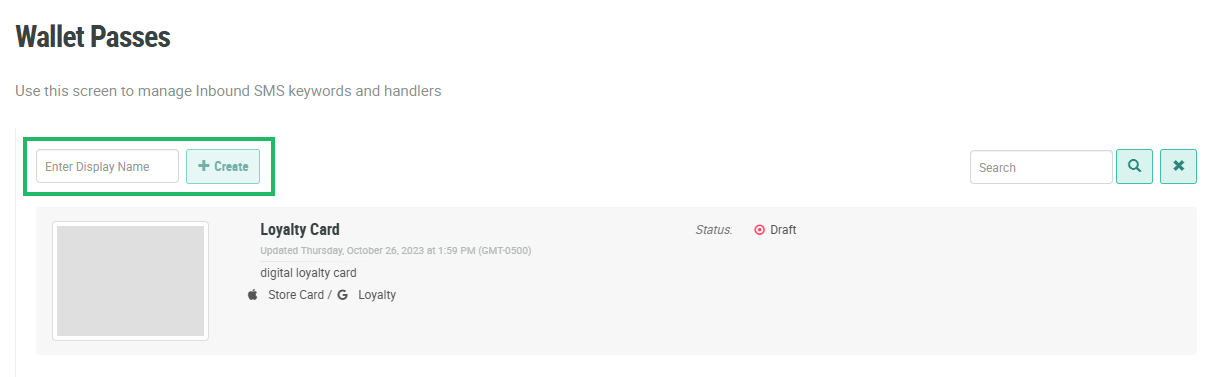
Select Campaigns from the top navigation bar, then select Wallet Passes from the side navigation menu. The Wallet Passes screen is displayed.
-
In the Enter Display Name field, enter the name of the new Wallet Pass, then click Create. The Edit Wallet Pass pop-up window is displayed.
-
The Display Name field is populated with the value you entered above; optionally edit this value.
-
From the Type drop-down menu, select
-
In the Organization / Issuer field, enter your company name. This value will appear as the distributor of the Wallet Pass in the Member’s mobile wallet on their device.
-
The value in the Internal Name field is automatically generated and locked. Do not modify this field without consulting your Zeta team; the internal name contains critical information that could break the configuration if modified.
-
Optionally, in the Description field, enter a description of this item.
-
Click Save.
The new Wallet Pass, with a status of Draft, is added to the Wallet Passes screen. To configure the new Wallet Pass, click on it to navigate to the Wallet Pass Details screen.
The Wallet Pass Details screen allows you to define the content that will appear to Members on the new
The process of setting up a new
-
Apple Content: Configure the Wallet Pass as it will appear on Apple devices; see Configure Apple Coupon Properties for more information.
-
Google Content: Configure the Wallet Pass as it will appear on Google devices; see Configure Google Offer Properties for more information.
-
Advanced Options: Assign data sources and configure additional Apple options; see Configure Coupon / Offer Advanced Options for more information.
-
Distribution: Optionally assign a landing page from which Members can download this Mobile Wallet Pass; see Configure Coupon / Offer Distribution Options for more information.
-
Validation: Validate the Wallet Pass to identify any errors or missing information; see Validate a Coupon / Offer for more information.
-
Publish: Publish the new Store Card / Loyalty Pass; see Publish a Coupon / Offer for more information.
